If you’ve ever tried to launch Minecraft only to be met with the error “Unable to prepare assets for download (Launching game request failed)”, you know how frustrating it can be. Instead of loading into your world, the launcher stops working and refuses to start the game.
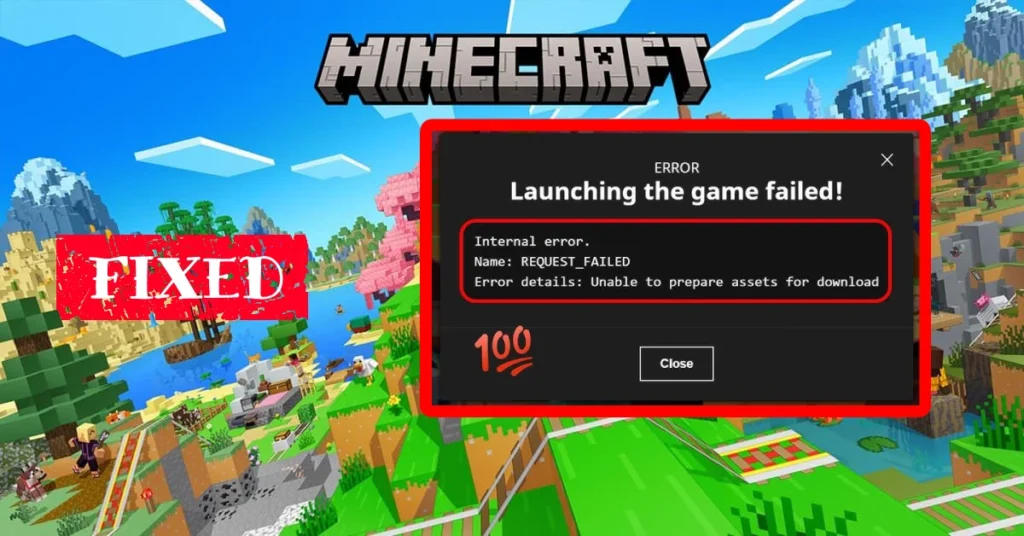
This issue often happens in the Microsoft Minecraft Launcher when the installation is corrupted, outdated, or when certain files can’t be synced with Mojang’s servers. It can affect both Minecraft Java Edition and sometimes even Bedrock Edition, preventing you from enjoying the game.
Fortunately, there are reliable fixes. In this guide, we’ll walk through two proven methods to solve the problem: reinstalling the affected game installation, and repairing/resetting the launcher via Windows settings. Both solutions are simple, safe, and have helped countless players get back into Minecraft.
Method 1 – Delete and Reinstall the Installation
Open the Minecraft Launcher.
Go to the Installations tab.

Find the version that gives the error (e.g., Minecraft 1.15, or a custom installation).
Click the three dots (…) next to it and select Delete.

Confirm the deletion.

Return to the Play tab, and reinstall the version by clicking on it again.
Press Play to check if the issue is resolved.
Method 2 – Repair or Reset the Minecraft Launcher
If reinstalling the game version didn’t work, the problem may be with the launcher itself.
Press Windows Key and type Minecraft Launcher.
Right-click and choose App settings.

Scroll down to the Terminate button → click it.
Then click Repair and wait for the process to finish.
If repairing doesn’t solve it, click Reset (this will restore the launcher to default settings but keep your game files safe).
Restart the launcher and try logging in again.

Extra Tips
- Ensure you’re connected to a stable internet connection.
- Try running the launcher as Administrator.
- Keep Windows updated, as outdated system files sometimes conflict with the launcher.
- If nothing works, reinstall the Minecraft Launcher completely from the Microsoft Store.
Conclusion
The “Unable to prepare assets for download (Launching game request failed)” error in the Minecraft Launcher is annoying but not permanent. By either deleting and reinstalling the broken installation or repairing/resetting the launcher through Windows settings, you can fix the issue quickly and get back to playing Minecraft without interruptions.
Staying up to date with the latest launcher and making sure your installations are properly managed will prevent this error in the future. With these fixes applied, you should no longer have trouble launching Minecraft Java Edition.
If this guide helped, share it with friends who are stuck with the same error because the faster we fix launcher problems, the faster we can return to building, mining, and exploring.